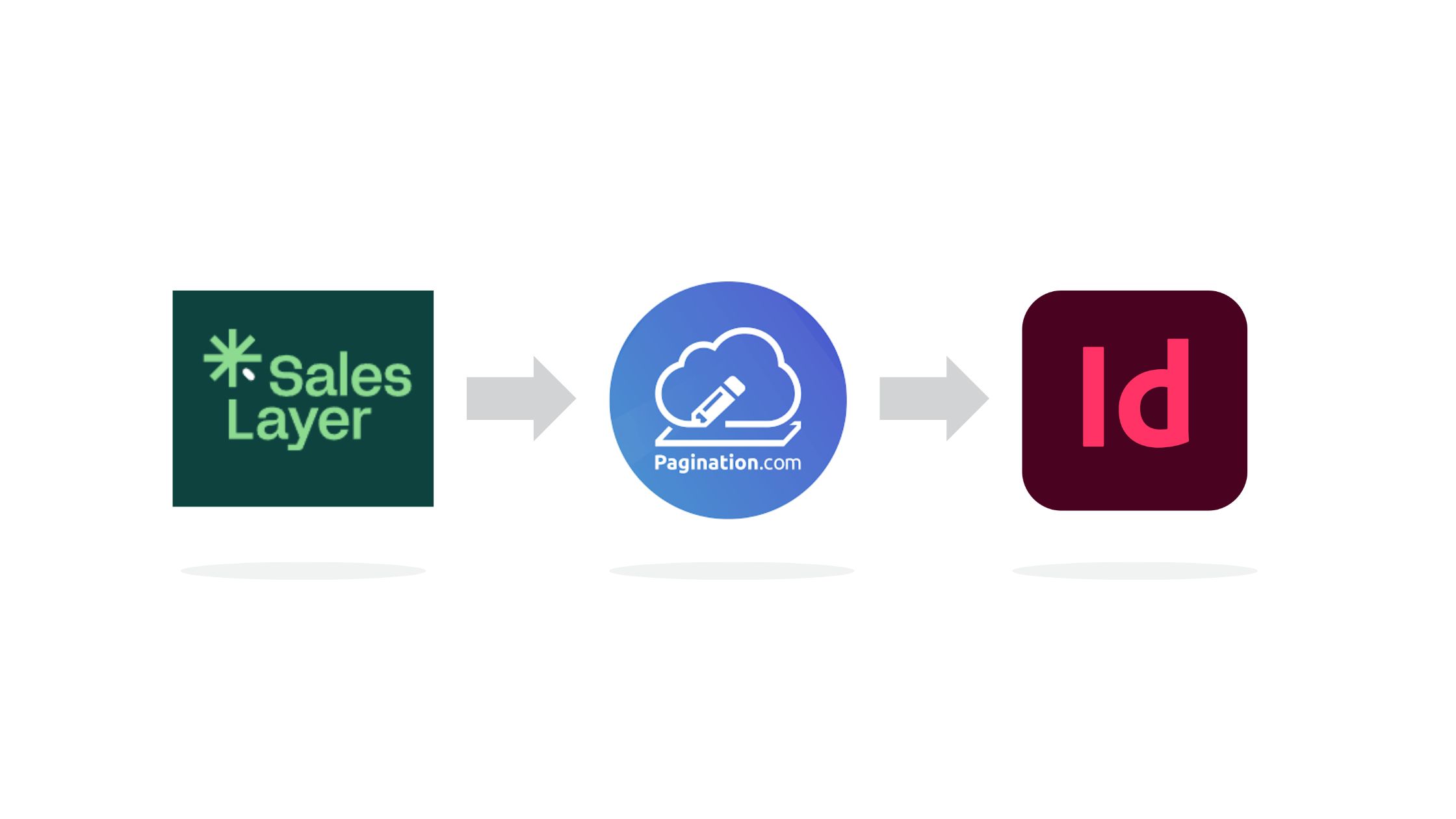
Sales Layer is your single source of truth for product information. Pagination turns that product data into print-ready InDesign documents automatically, no copy-paste, no manual layout, no re-keying specifications every time a catalog goes out.
The connection runs through a Sales Layer channel that feeds a live export URL straight into Pagination. Update a product in Sales Layer, regenerate the feed, and your next catalog, price list, or product sheet reflects the change, with the same rules, layout, and quality every time.
Automate Catalogs and Documents from Sales Layer
Sales Layer keeps your catalog data structured and clean: products, their variants, category hierarchies, and points of sale, all managed in one PIM. Pagination is the automated InDesign engine that consumes that structure and lays it out.
Together they close the loop between “product data is correct in the PIM” and “the catalog on press is correct too”, without a designer manually rebuilding pages for every edition.
- One source of truth: product specs, codes, and images live in Sales Layer
- Automated layout: Pagination maps Sales Layer fields into your InDesign template
- Repeatable output: the same feed produces consistent documents run after run
- Multilingual: Sales Layer’s language setting carries through to the generated document
How to Connect Sales Layer to InDesign with Pagination
The connection is built around a Sales Layer channel and the export feed it generates. Here is the flow end to end.
1. Create an Excel Export channel in Sales Layer
Channels are the tool Sales Layer uses to publish data to external systems, and the Channel Marketplace offers several ready-made connectors. For Pagination, you create a channel based on the Excel Export connector: a plain extraction of your PIM data into a spreadsheet, with no InDesign-specific formatting baked in. Pagination handles the formatting downstream, from your template.
2. Configure the channel
In the channel settings you define how the export is structured. For the Pagination integration this configuration is fixed, not a matter of preference, because the connector on Pagination’s side expects a specific shape:
- Three tabs, one each for categories, main products, and variants
- Full image URLs exported, so Pagination can pull the assets
- Output data selection: for categories, products, and variants you choose which attributes to export. By default every available attribute is included; you can add or remove fields later as your data model changes.
Save the channel and Sales Layer generates the export.
3. Sales Layer publishes a static feed URL
The saved channel produces a feed in the Downloads section: a static link where the generated Excel export lives. The URL stays the same over time; when your product data changes, you regenerate the export and the same link serves the updated file. That stable URL is the hand-off point to Pagination.
4. Add the feed URL to Pagination
In Pagination, open your project’s Integrations settings and configure the Sales Layer integration with the channel feed URL from the Downloads section. That is the link Pagination calls to download the current Excel export.
5. Generate the document
When you launch a job, Pagination fetches the Excel feed, reads the three tabs (categories, main products, variants) with the attributes you selected, and merges them into a single structured dataset aligned to your template. You pick the project, choose the cover and static pages, review the recap, and launch, and Pagination produces the paginated document exactly as it does for any other data source.
How Pagination Handles Your Sales Layer Data
Sales Layer’s data model has a few characteristics the connector is built to respect:
- Parent-and-variant hierarchy. In Sales Layer a product is the main object (for example, a screw) with its variants attached (size S, M, L). It is a single parent-child level. Pagination keeps parents and their variants together and in the right order in the output, rather than letting them scatter by alphabetical sort.
- Category hierarchy. The categories tab carries the grouping structure from Sales Layer, so your table of contents and section breaks follow the catalog’s real organization.
- Attribute selection. Whatever you include in the channel flows through; add a new attribute in the PIM, include it in the channel, and it becomes available to the template.
- Images by URL. Because the channel exports full image URLs, Pagination links each product to its asset automatically at generation time.
Store Pagination Output Directly in Sales Layer
The integration works in both directions. Product data flows from Sales Layer into Pagination, and the documents Pagination generates: catalogs, price lists, PDFs, and InDesign files, sync straight back into Sales Layer.
To enable it, you add your Sales Layer API credentials (API key and password) alongside the feed URL in the Pagination integration settings. From there, every generated output is written back to Sales Layer automatically, ready for versioning and distribution.
Start Automating Your Sales Layer Catalogs
If Sales Layer is your main data source and your catalog structure is standard, this native, channel-based connector is the fastest path to automated production. If you need to merge other PIM with other systems, apply complex business logic, or handle non-standard formats, a custom integration covers those cases.