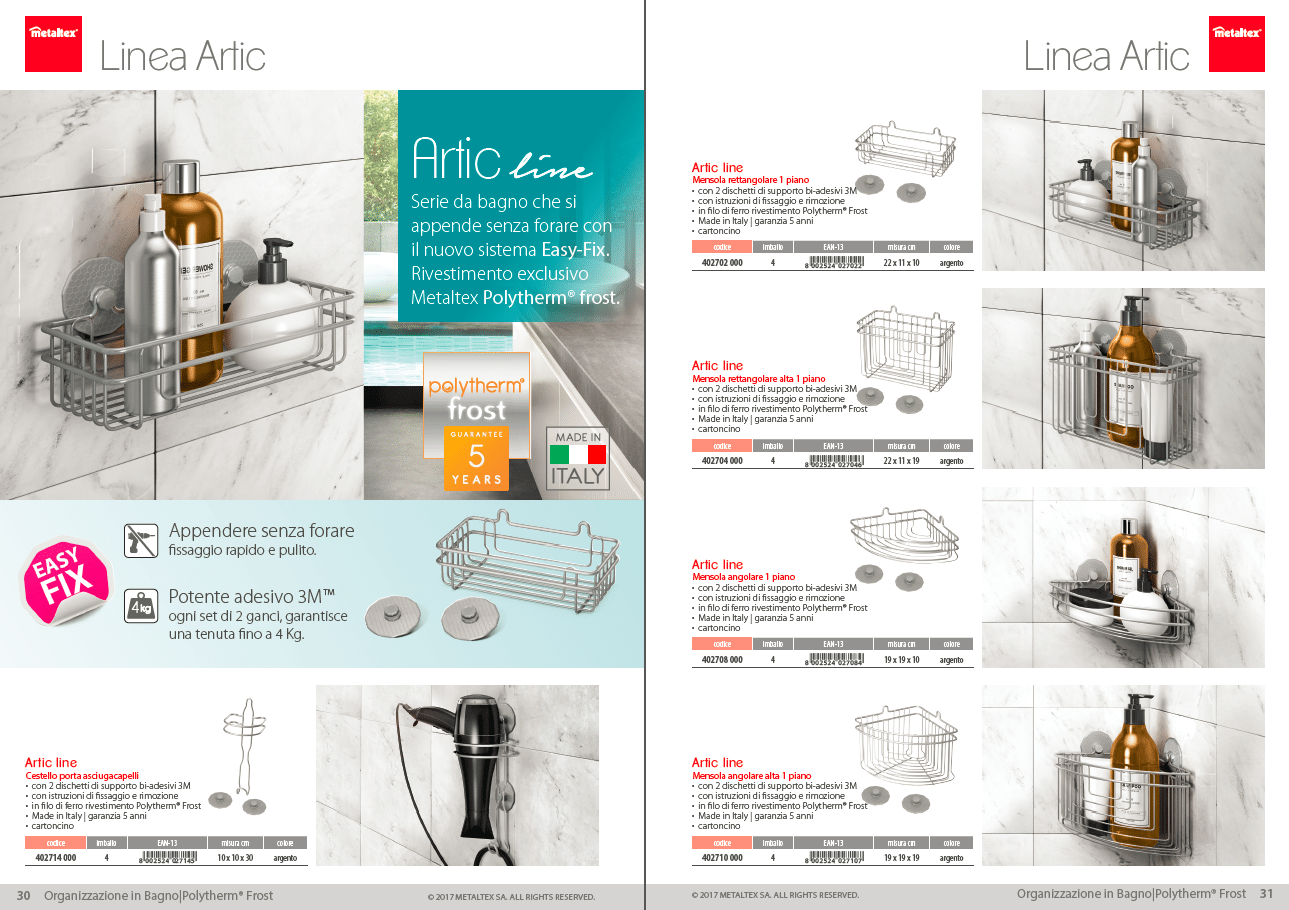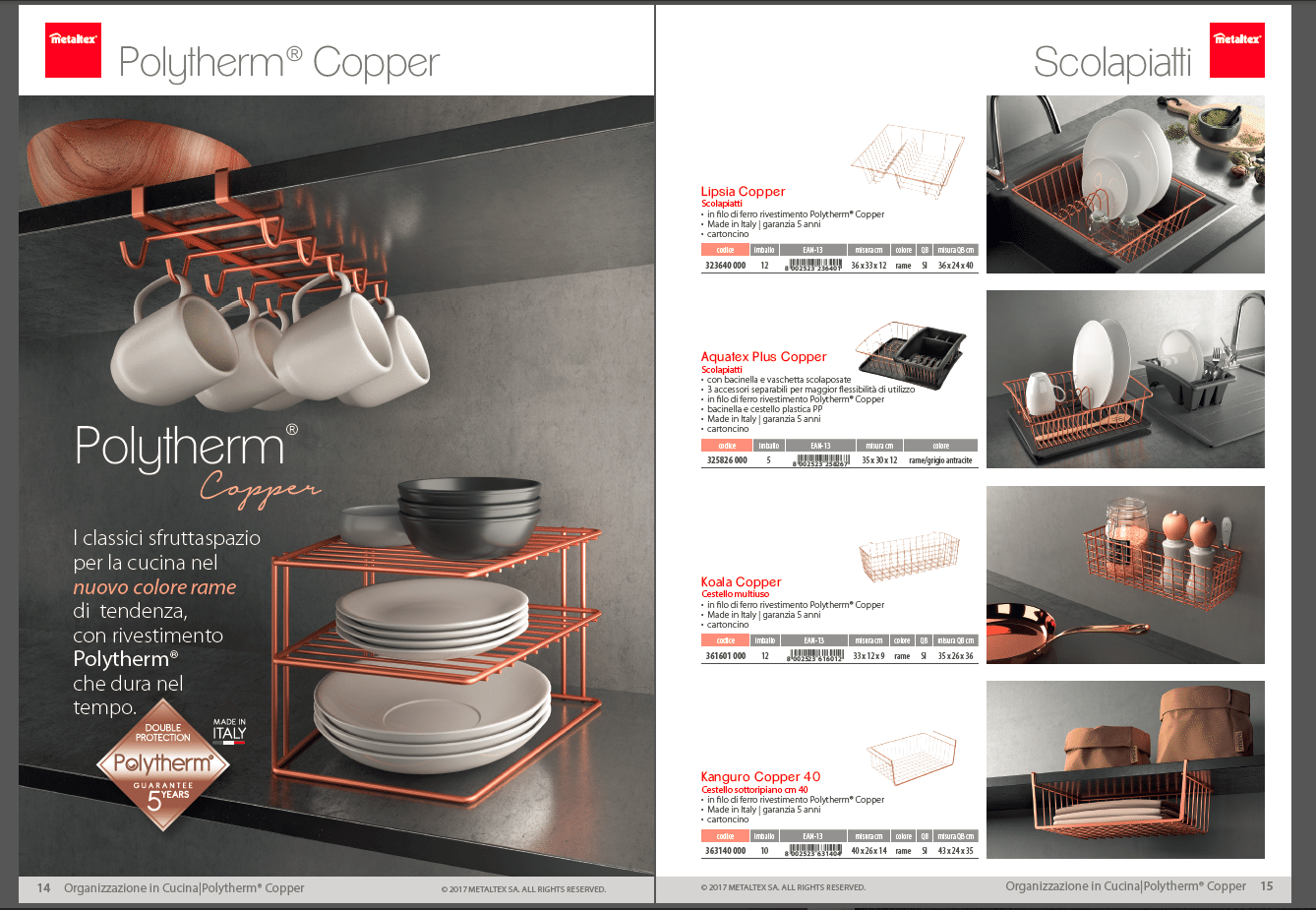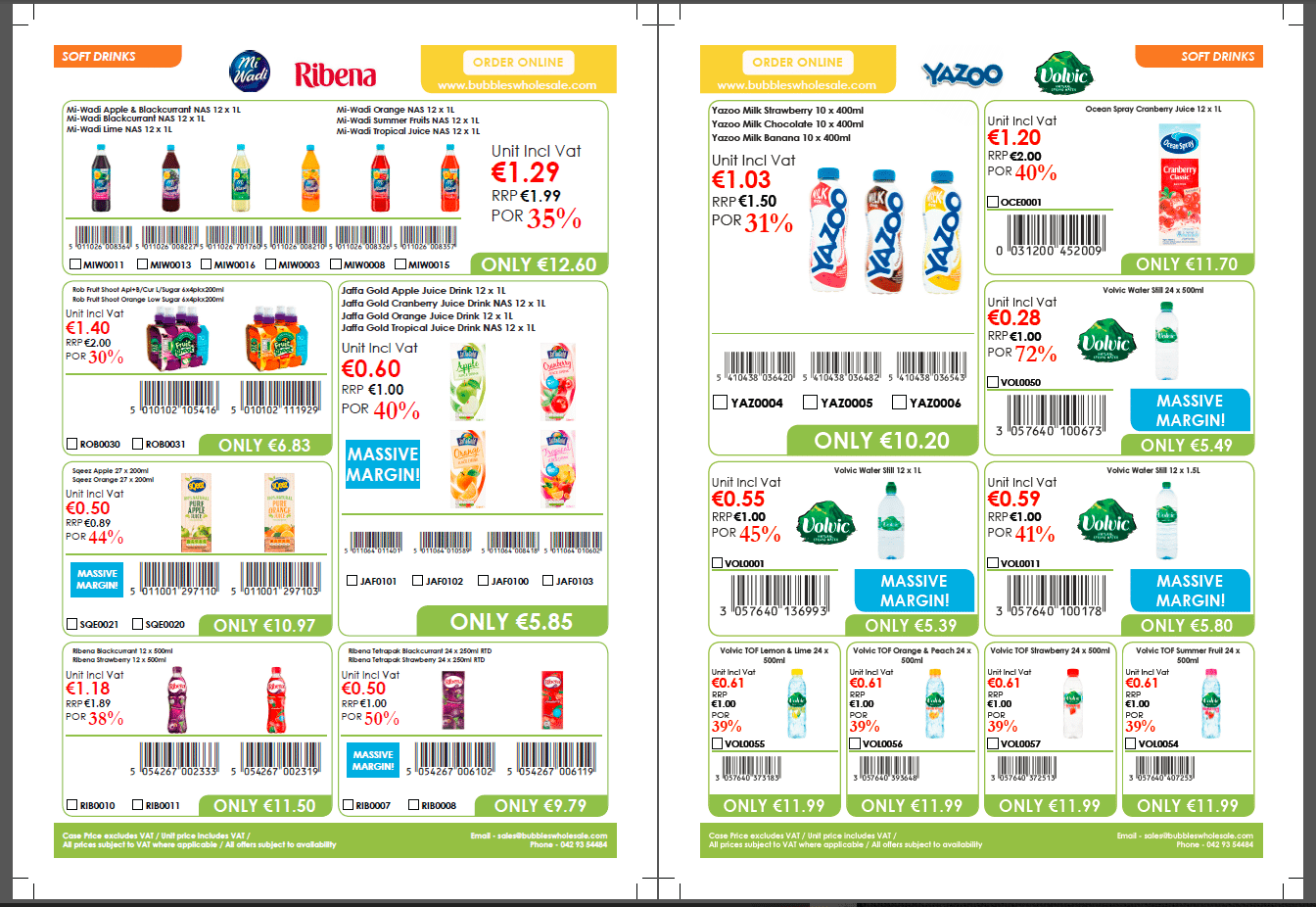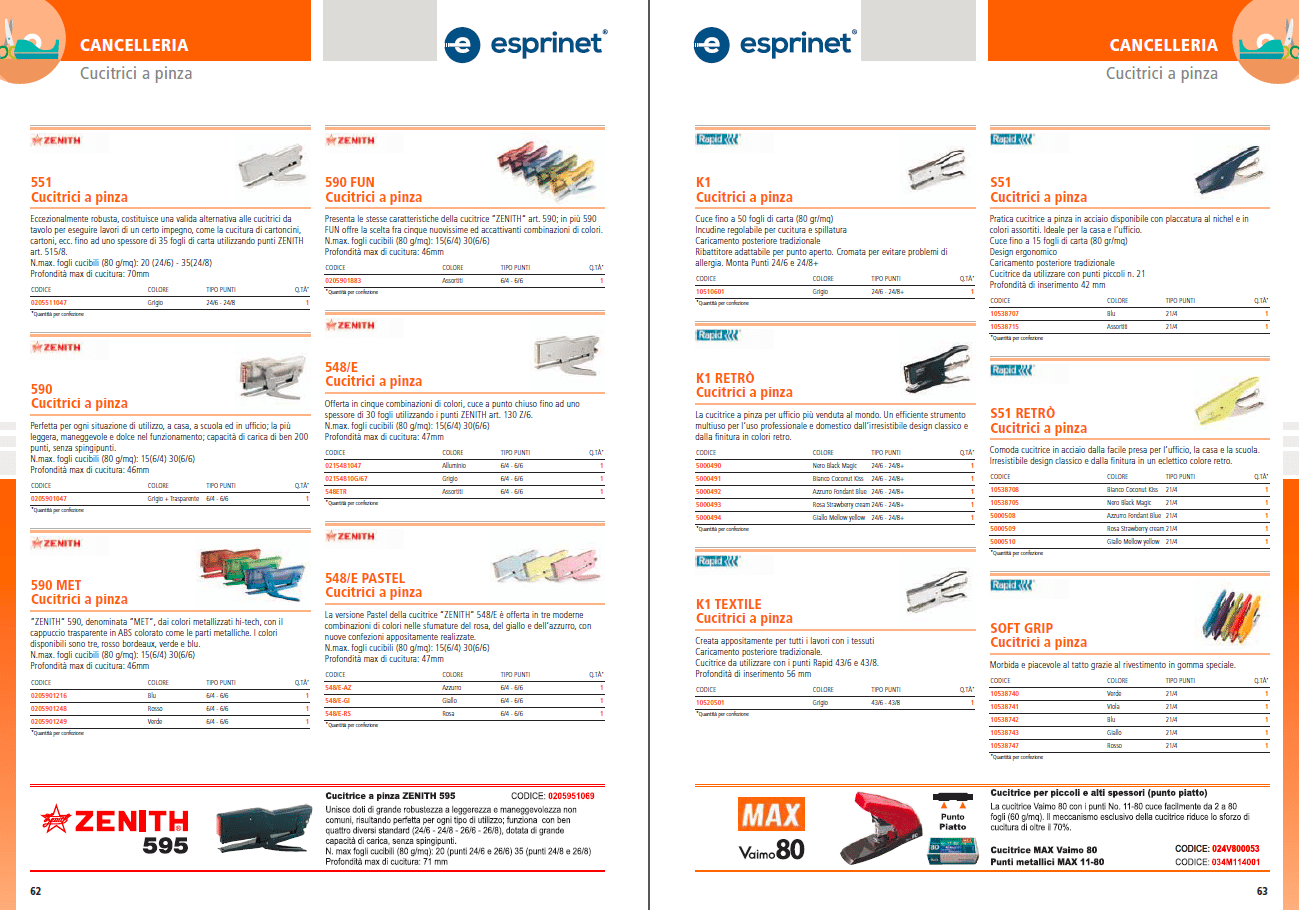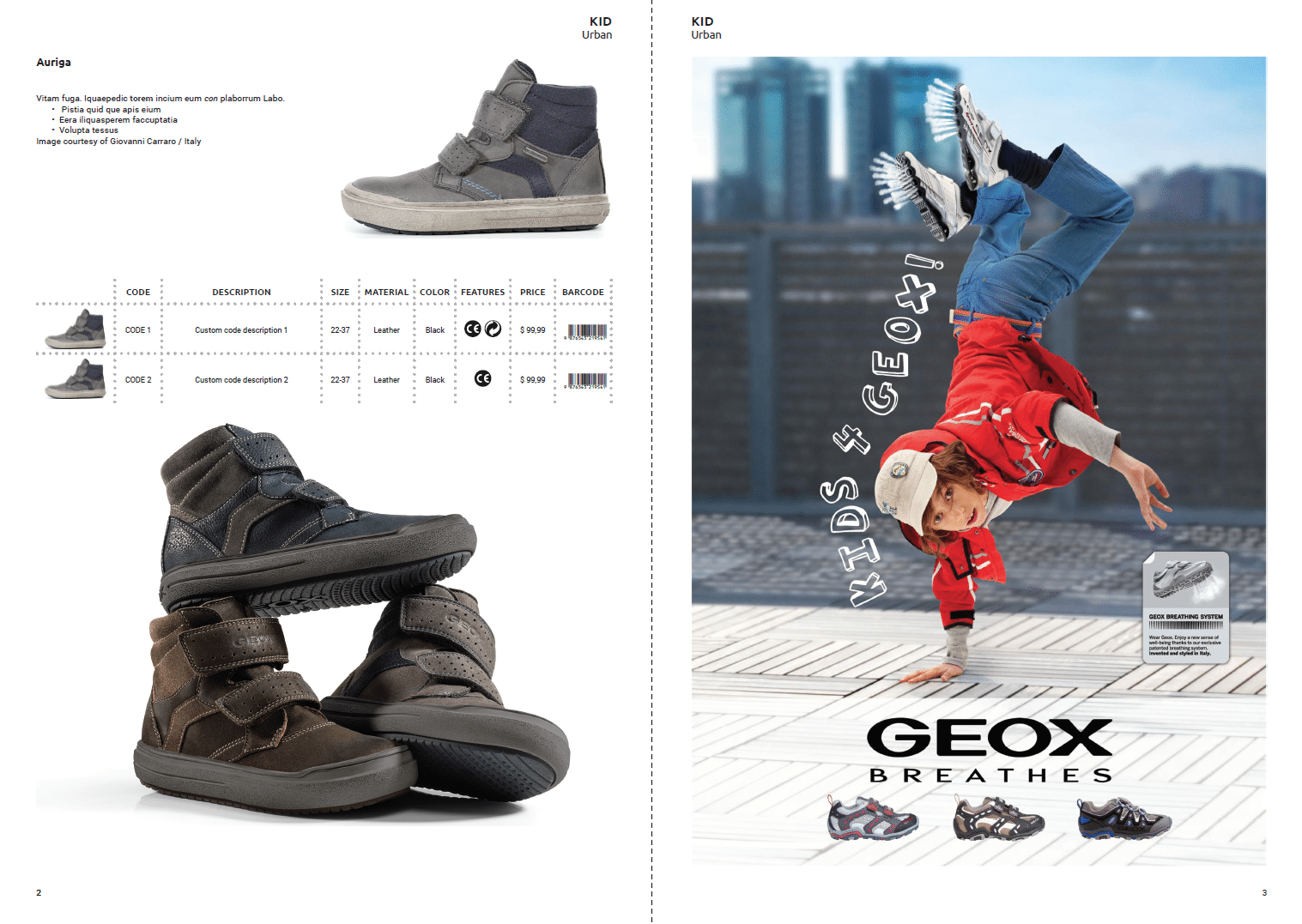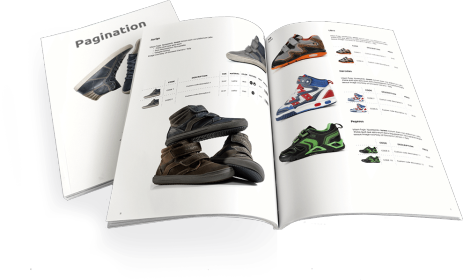
If you’re manually updating hundreds of product prices in InDesign catalogs or recreating the same layout for different markets, you already know the problem: InDesign is powerful for design, but it wasn’t built for repetitive, data-heavy production work.
InDesign automation changes that. It uses rules, data, and software to generate documents automatically, turning your layouts into a scalable production system. Instead of opening files one by one to change text or swap images, you connect your data sources and let automation handle the heavy lifting.
What problems does InDesign automation solve?
Manual layout work becomes a bottleneck when you need to:
- Update prices or product information across multiple documents
- Create versions for different languages, markets, or customer segments
- Maintain consistency across hundreds of pages
- Meet tight deadlines with limited design resources
- Reduce human errors in repetitive tasks
These challenges become critical when your product range grows, content changes frequently, or you need to publish across multiple channels. At that point, manual work simply doesn’t scale.
Three approaches to InDesign automation
1. Native InDesign Features
InDesign includes basic automation tools that work well for simpler projects:
Data Merge lets you connect a CSV or text file to create variations of a layout. It’s useful for business cards, labels, or simple product sheets where each record fills the same template. The limitation is that Data Merge doesn’t handle complex logic, conditional formatting, or multi-page layouts with variable structure.
- GREP styles, object styles, and libraries help maintain consistency and speed up repetitive formatting tasks. You can automate text styling, create reusable design elements, and enforce brand standards across documents.
XML Importing extends the capabilities of Data Merge, offering an additional layer of flexibility. This feature allows for the direct importation of XML data into InDesign, enabling you to apply complex XML structures to your layouts without being strictly tied to CSV formats. You can use XML Importing with or without Data Merge, allowing for more customized document layouts that align closely with unique design preferences and brand standards.
- These native features are a good starting point, but they hit limits quickly when you’re dealing with catalogs of hundreds or thousands of products, complex business rules, or data from multiple sources.
XML Importing, while more flexible than Data Merge, still requires technical knowledge to structure data properly and doesn’t offer the error handling or scalability needed for large production environments.
2. InDesign Scripting
InDesign supports JavaScript and ExtendScript, which means you can write custom scripts to automate almost anything: applying layout rules, creating text flows, running find-and-replace operations, and exporting files in batch.
- Scripting gives you more control than Data Merge and can handle complex logic. The challenge is maintenance. As your requirements grow, scripts become harder to manage, especially if only one person understands the code. When that person leaves or business rules change, you’re left with fragile automation that’s difficult to update.
Check more about InDesign scripting in the Adobe guide.
3. Third-Party Plugins and Cloud Platforms
This is where InDesign automation becomes truly scalable. Third-party tools fall into different categories: plugins that extend InDesign’s capabilities, desktop software that orchestrate workflows, and cloud platforms that run InDesign automation in the background.
When evaluating automation software, look for:
- Data connectivity: Can it connect to your ERP, PIM, DAM, or e-commerce platform?
- Error handling: Does it validate data and catch problems before they reach the layout?
- Scalability: Can it handle batch processing for thousands of pages?
- User interface: Can non-designers use it without learning InDesign scripting?
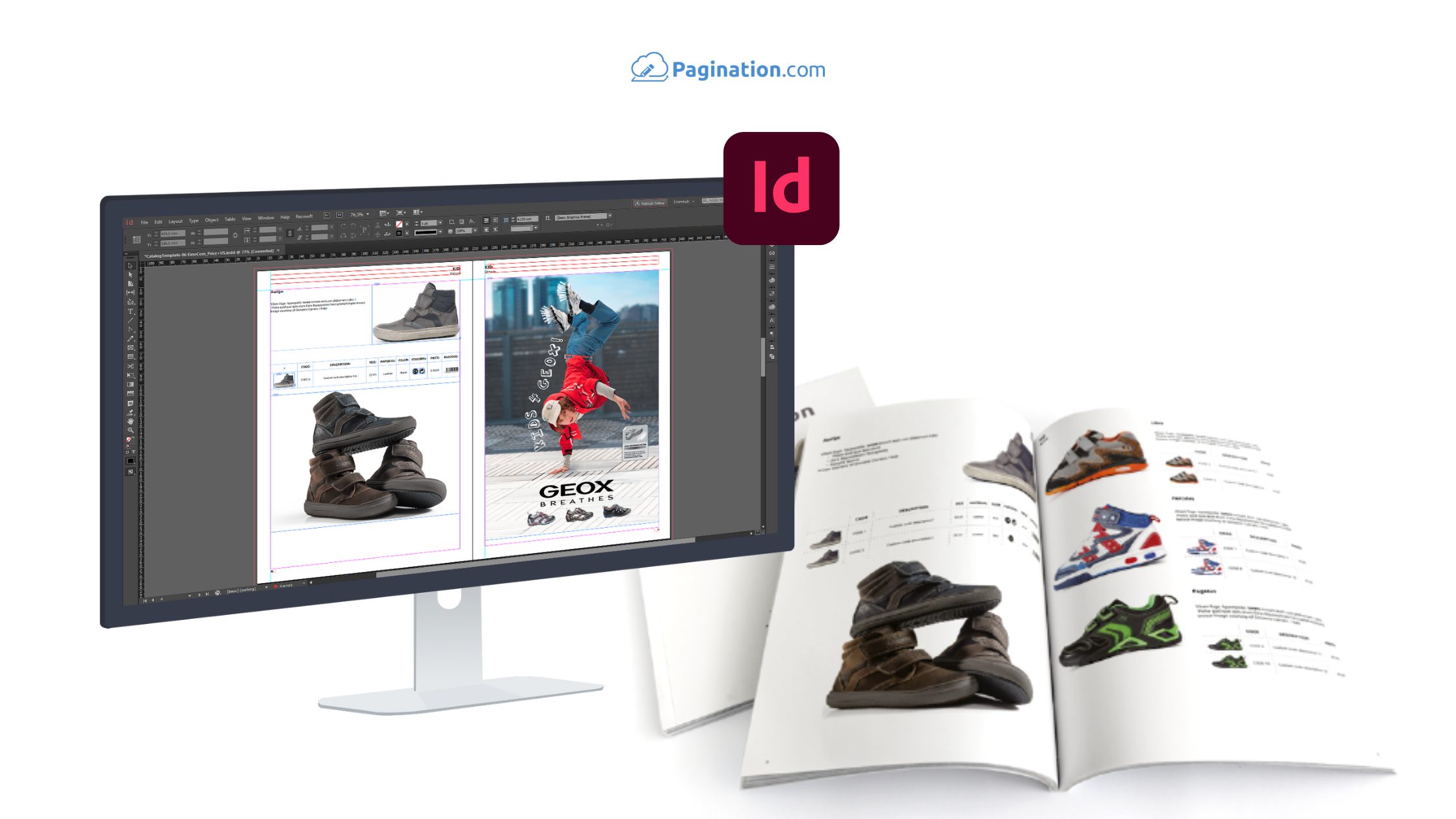
Pagination is a cloud database publishing platform built specifically for this. It uses InDesign under the hood but hides the technical complexity, giving marketing and product teams a guided interface to generate documents while maintaining full InDesign editability for final changes.
Common use cases for InDesign automation
InDesign automation works for any document type where data changes frequently or you need multiple versions:
- Product catalogs and price lists are the most common use case. You might need the same catalog in five languages, with prices in different currencies and product selections tailored to each market. Automation generates all versions from a single template and shared data source.
- Technical and product sheets often follow standardized layouts but need to be created for hundreds of SKUs. Automation pulls product specifications, images, and descriptions from your data and applies consistent formatting.
- Retail leaflets and circulars require fast turnaround for weekly or seasonal promotions. Instead of rebuilding layouts manually, automation regenerates them as offers change.
- Branded PDFs for sales teams and distributors need to be personalized with customer-specific pricing or product selections while maintaining brand consistency.
All of these end up as print-ready and web-ready PDFs, often in multiple formats from the same source data.